This page connects Exact Online to an AI assistant such as ChatGPT or Claude through Chat with your Books. The setup takes about 5 minutes, requires no technical knowledge, and is built for entrepreneurs, bookkeepers and accountants. Pick your platform below and follow the steps.
You only see the instructions for the platform you pick.
Recommended: Via URL (Custom Connector)
In Claude go to Customize → Connectors, choose Add custom connector and paste this URL. If you see a Continue button, click it, then click Add. Leave the settings as Claude fills them in; it detects our sign-in method by itself.
You'll log in via OAuth - no API key needed. On first use your browser opens for Exact Online login.
Alternative: Via config file
Open the Claude Desktop configuration file and add the connector:
ChatGPT Business, Enterprise or Edu: there the connection works in full, and with our Pro plan also creating and changing entries. On ChatGPT Pro you can only retrieve data, even if you are on our Pro plan. You set it up in ChatGPT on the web.
ChatGPT Free: according to OpenAI you cannot add your own connection there. These do work with a free account: Claude (one custom connector on the free plan, which is all you need) and Vibe (Le Chat), if you are the account admin.
Before you start
You need: your Exact Online sign-in details, and ChatGPT in a browser on a computer.
Time: about 5 minutes.
How often: once. After that it simply works.
Pick your situation
There are two ways to add the connection. Which one applies depends on your ChatGPT account. Pick your case below and follow only that procedure.
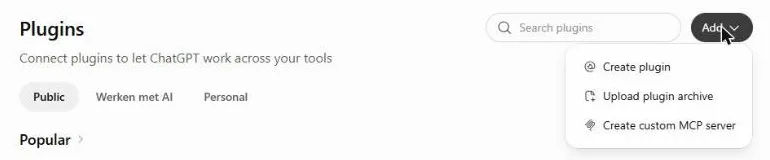
At the top right, click Add and choose Create custom MCP server.You need the bottom option.Tap to enlarge
No Create custom MCP server option? Then developer mode is off. According to OpenAI you turn it on in the ChatGPT settings, in the browser. On Business, according to OpenAI, only an admin may do that; if you use ChatGPT through work, see B.
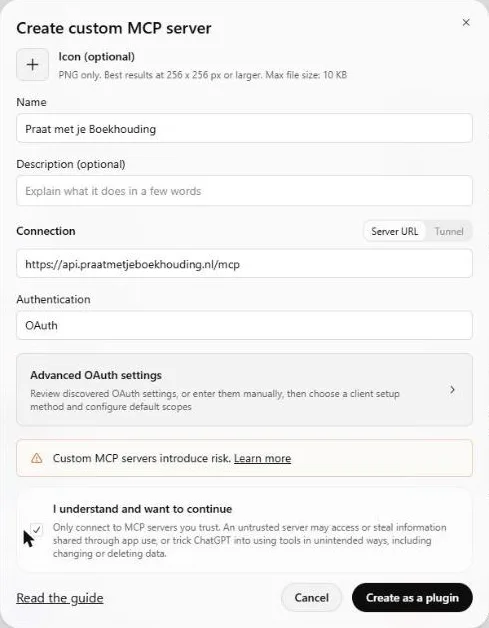
In Name, enter this name:
Leave Connection on Server URL and paste this URL into the field below it:
Leave Authentication on OAuth. That is already correct. Do not pick No authentication here: it looks like it works, but nothing will. You do not need to open Advanced OAuth settings.
At the bottom, tick the box I understand and want to continue.This is how the window should look before you click Create as a plugin.Tap to enlarge
Why this box: ChatGPT warns that custom MCP servers carry risks. That is accurate: OpenAI does not review our server, so you decide whether you trust us.
Click Create as a plugin.
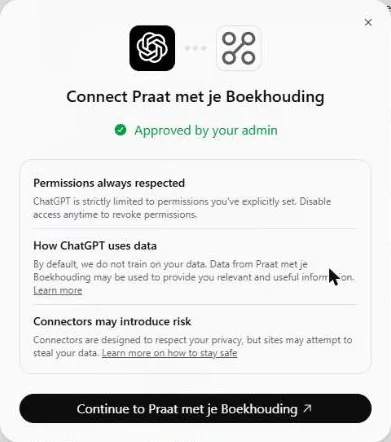
A window Connect Praat met je Boekhouding opens. At the bottom, click Continue to Praat met je Boekhouding.The button at the bottom takes you to the sign-in.Tap to enlarge
Sign in with your Exact Online account and click Toegang verlenen (grant access).
Done when: your account is listed under Connected accounts on the connection's page.
Nothing listed there? Then signing in did not go through. Connect the connection again on that page and sign in once more.
B. Check whether work already set it up
If you use ChatGPT through work, start here. This takes half a minute.
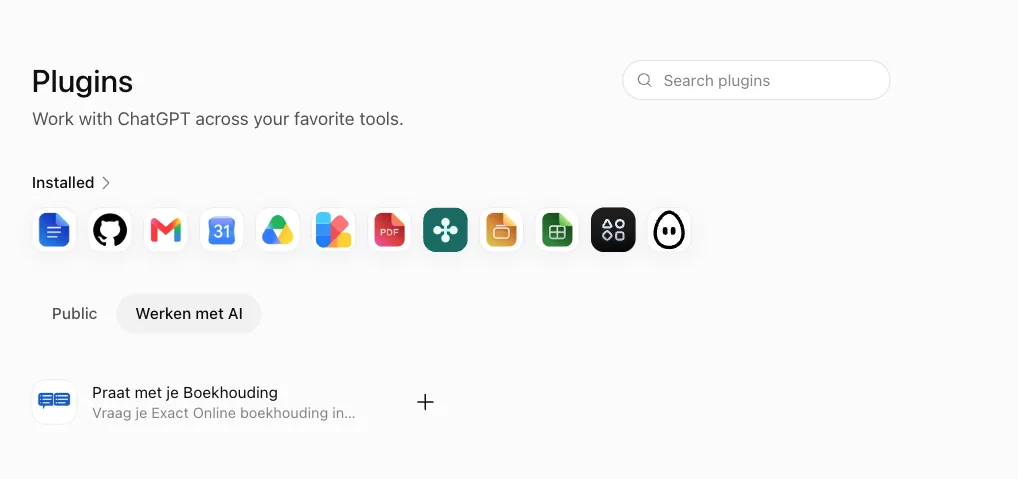
Check whether there is a second tab next to Public carrying your company name.Here the workspace is called "Werken met AI"; yours shows your own company name.Tap to enlarge
Is that tab there, with Praat met je Boekhouding in it?
Click the tab with your company name.
Click Praat met je Boekhouding.
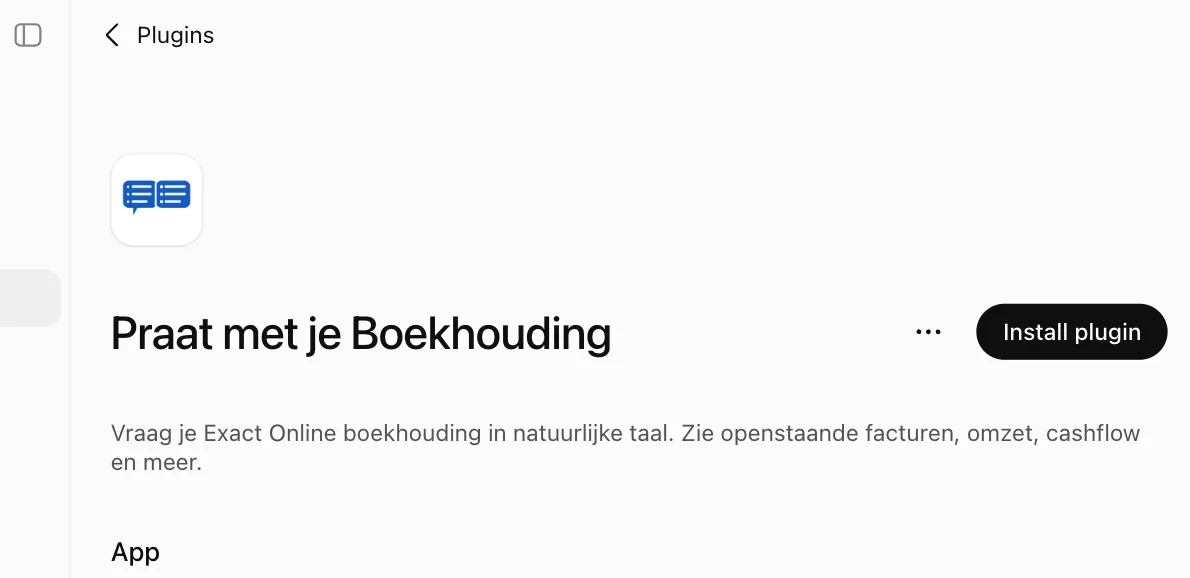
At the top right, click Install plugin.The button is at the top right of the connection page.Tap to enlarge
Connect the connection and sign in with your Exact Online account. Your account then shows under Connected accounts.
Done. You can skip procedure A.
No such tab, or the connection is not listed?
Then you choose between two things:
Try procedure A. If Add has no Create custom MCP server option, developer mode is off for you. According to OpenAI, not every member may turn it on: on Business only an admin, on Enterprise only if the workspace allows it (by default it does not). Then ask your admin for procedure C.
Or ask your admin for procedure C. Then the connection is ready for all your colleagues; each of them still signs in to Exact Online.
C. Set it up for your whole team
Admins of a ChatGPT workspace only (Business or Enterprise). Takes about 7 minutes.
First follow procedure A above, for yourself.
Click your name at the bottom left and choose Settings.
Under the Integrations heading, click Plugins.
Click the connection you just created and open Manage app.
Click Publish to workspace.
Now ready for your team: your colleagues see the connection under the tab with your company name and can follow procedure B.
Optional: want to save your colleagues the install step as well? Then put the connection in place for everyone up front.
Go to chatgpt.com/admin and click Plugins. ChatGPT then opens the admin console.
Click the tab with your company name.
For Praat met je Boekhouding, click the current value in the Installation policy column.
Choose Installed and save.
Note: this signs nobody in. Every colleague still connects once and signs in with their own Exact Online account. You cannot do that for them, and that is a good thing: everyone only sees what they are allowed to see in Exact.
What you do not need for this: the Manage legacy apps link in the admin screen, and the Upload plugin archive option under Add. That one asks for a file and does not accept our URL.
Next: your first question
On the connection's page, click Try in chat at the top right. A chat opens with the connection already selected.
Ask your question in plain language, for example: which invoices are still open?
Recommended: turn training off
In ChatGPT, go to Settings and then Data controls.
Turn Improve the model for everyone off.
Using ChatGPT through work (Business or Enterprise)? Then this is already off and you need to do nothing.
What works after this? Ordinary chat questions about your relations, invoices and entries, and deep research across your administration as well. You do not have to switch the connection on per conversation. Deep research can only retrieve data, not post entries.
With Claude Cowork you can collaborate with Claude on your desktop. Cowork shares connectors with Claude Desktop — add the MCP URL once and use it everywhere.
Works in the Codex app (web and desktop) and via the Codex CLI. No config file needed if you use the app.
Step 1: Add the MCP server in the Codex app
Open Codex and go to Settings (gear icon) → MCP servers
Click Add server and pick Streamable HTTP as the transport (the Codex app sometimes calls this "streamable MCP")
Enter:
• Name:Praat met je Boekhouding
• URL: copy the URL below
Click Save. Codex then starts the OAuth login with Exact Online automatically (click Authenticate if prompted)
MCP Server URL:
You'll log in via OAuth - no API key and no config file needed
First time? After saving, Codex opens an Exact Online login screen, or shows a separate "Authenticate" button next to the server. Log in and the connector works immediately. You only need to do this once.
Alternative: Codex CLI
Working from the command line? Add the server, then log in separately:
The first command adds the server to ~/.codex/config.toml, the second starts the OAuth login with Exact Online. Unlike in the app, this doesn't happen automatically from the CLI.
All platforms connect via OAuth login, no API key needed. An API key for API or headless use is available in your Dashboard.
3Restart your AI Assistant
Completely close and restart your AI assistant. The MCP server will be loaded automatically.
For Claude and ChatGPT, not really — you connect with an API key (starting with exa_) or via OAuth and follow our steps. No code needed. For Gemini and Copilot it's a bit more technical, via the CLI/SDK or Copilot Studio. Unsure? Start with Claude or ChatGPT.
Does it work with ChatGPT?
Yes, and it runs in production. There are two ways. If an admin published the connection in your workspace, it is listed on the Plugins page under the tab with your workspace name and you install it in one click, or it is already there if the admin set the installation policy to Installed. Otherwise you add it yourself in the browser, through Add and Create custom MCP server. According to OpenAI that needs developer mode switched on. According to OpenAI that is not possible on ChatGPT Free, and in a workspace not every member may flip that switch: on Business only an admin, on Enterprise only if the workspace allows it. If it does not work for you, ask your admin to publish the connection. On ChatGPT Business, Enterprise and Edu the connection works in full, and with our Pro plan also creating and changing entries; on ChatGPT Pro you can only retrieve data, even if you are on our Pro plan.
Does it work with Claude?
Yes, and this is the most direct way. Claude supports our connection natively via MCP — in Claude Desktop, Claude Code and Claude on the web. A paid Claude plan is not required: on a free Claude account you can add one custom connector, and this is that one. Once connected, you simply talk to your books without installing anything else.
Can I connect multiple administrations?
Yes. How many depends on your plan: Free 2, Starter 3, Pro 10 and Enterprise unlimited. You can also set per administration whether writing is enabled.
How does onboarding work?
Three steps: you create an account, authorize your Exact Online administration and connect your AI assistant via the MCP URL. The connection is active within a few minutes and you can ask your first question right away. No technical knowledge required.